 Commbot
Home: your store's day on a single screen
The first page you see after signing in is your store's home page. What happened today — how often you were shown, what went into carts, which orders came in — is visible at a glance, without clicking through the panel.
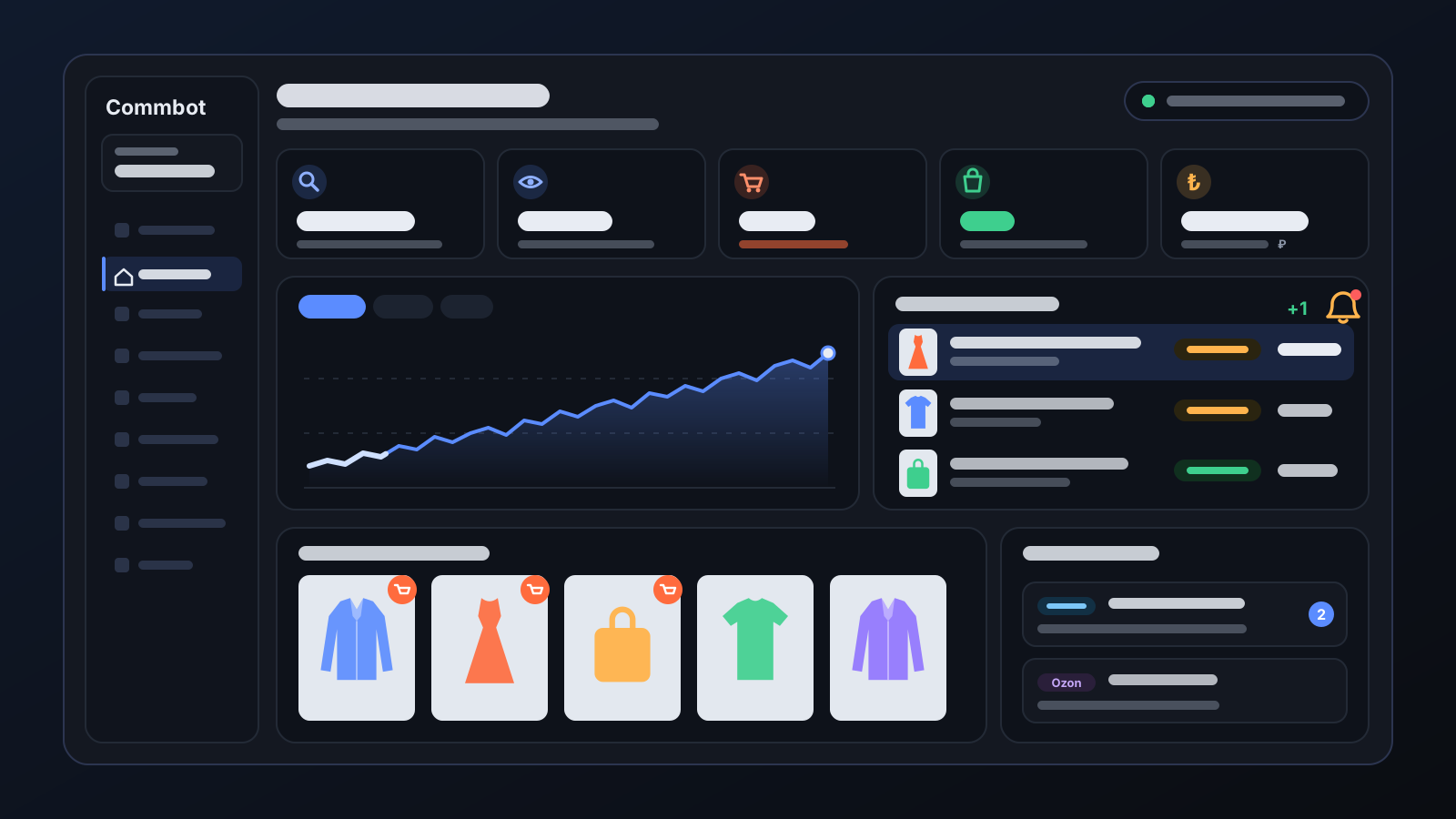
Understanding how the day is going on Ozon usually means opening several screens: analytics in one place, orders in another, messages somewhere else. Home brings all of this together for the selected store. Products appear with their photos, so you know which item is meant without reading offer codes.
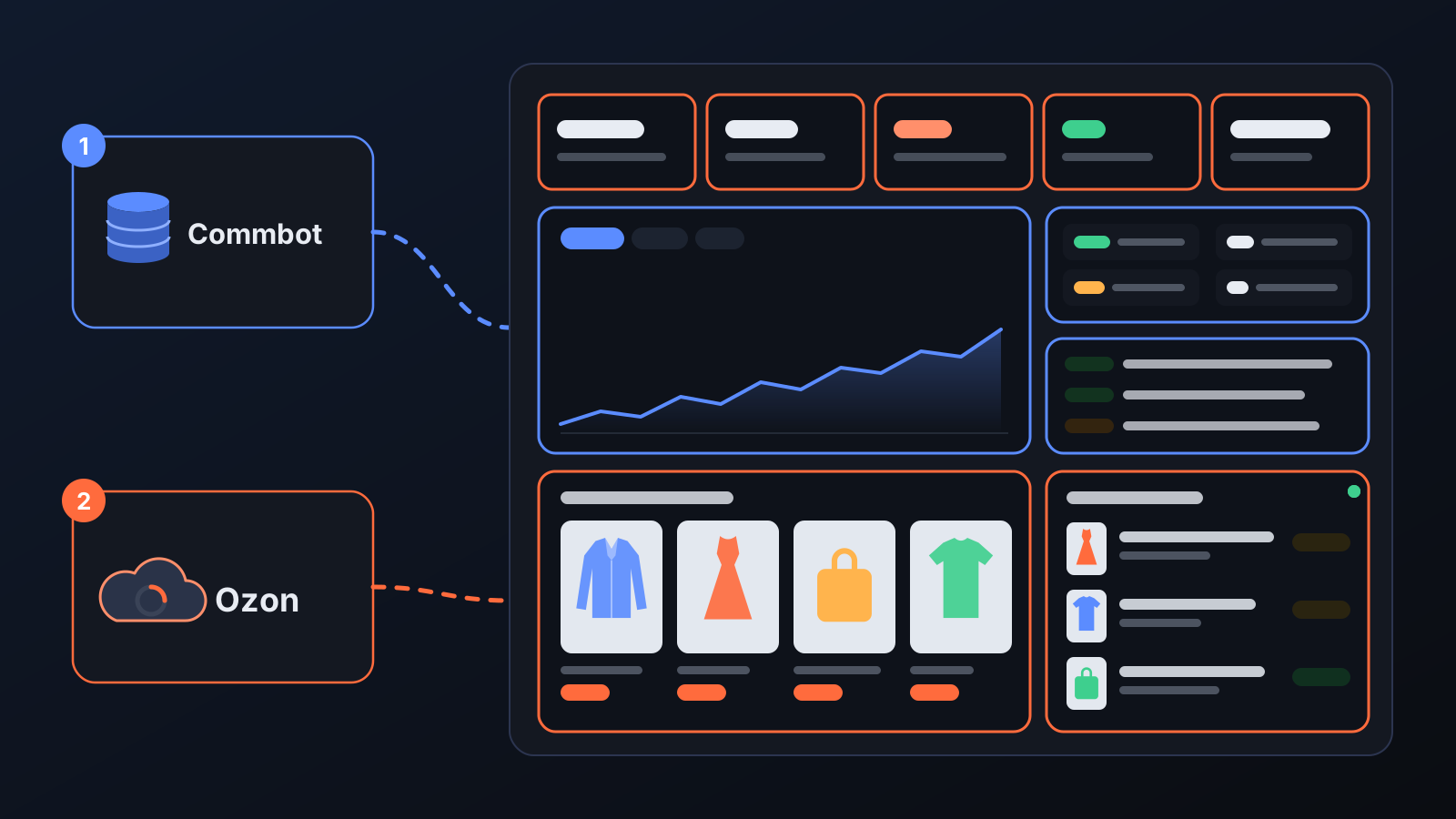
How it works
- When you sign in, Home opens; if you have several stores, you land on the one you opened last.
- Today's five figures sit at the top: Shown in search, Listing views, Add to cart (with its rate against listing views), Order and Today's revenue. The data time is shown at the top of the page, and the figures refresh on their own while the page stays open.
- Added to cart today and Today's orders are listed with product photos, so you see at a glance what buyers liked and what they bought.
- The Last 30 days chart has Order, Revenue and Profit tabs. Days whose payment Ozon has settled show actual profit; other days show estimated profit.
- Top 5 products are ranked separately for today, this week and this month. Last 10 operations and Latest messages are at the bottom of the page.
What it affects
- Winning product question: in stores running on full automation, when a product that has already received orders runs out of stock, Home asks you before it is removed from the store. Choose Remove from store and the listing is archived, then reopens on its own when the source has stock again; choose Keep it and you won't be asked again during this stock-out.
- Engine today: in stores running on full automation you see how many products the engine added today, how many listings it archived, how many it set to zero stock and how many actions are waiting for your approval. Click the number of added products to see the list.
- Alerts: if you have no active warehouse on Ozon, a warning appears at the top: your products can be created, but stock cannot be written, so they cannot go on sale. The warning disappears once you open a warehouse.
- Product card: click any product in the lists to open its card: photos, purchase and selling price, profit and stock by size.
For better results
- Added to cart today shows buyer interest. If a product is often added to carts but not bought, check its price and sizes.
- The 30-day chart comes from Ozon analytics and runs one day behind; today's figures are in the tiles at the top.
- Review the month using days whose payment is settled: estimated profit turns into the actual figure once Ozon settles the payment.
- Latest messages depend on Ozon chat access; if your account doesn't have it, the block shows a note saying so.
More from Commbot
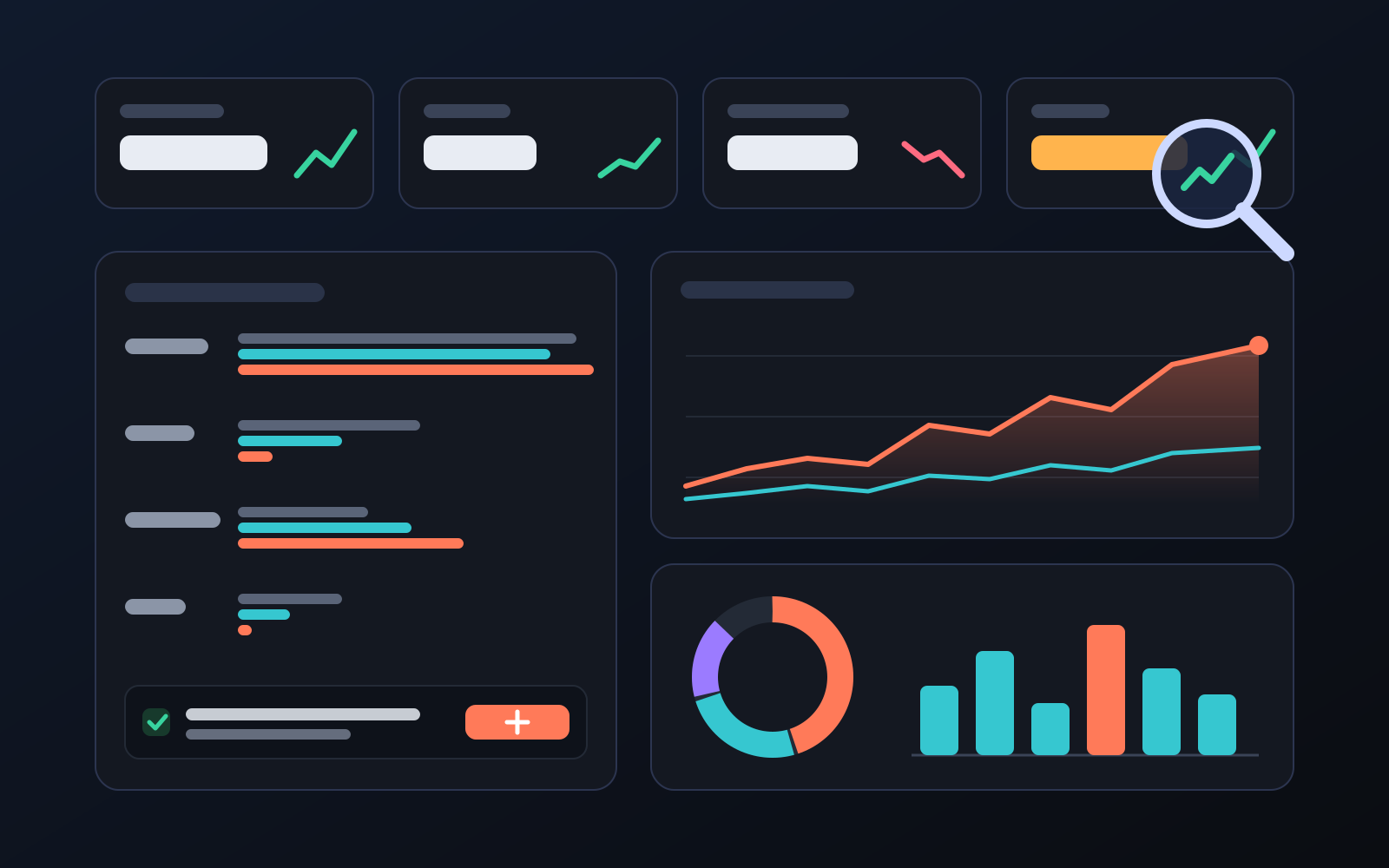
Analytics page: what sells in your store and what doesn't, on one screen
See how your products do by category, brand, price, colour, size and region, in charts. The page turns findings into plain sentences and gives one-click suggestions.
2026-10-29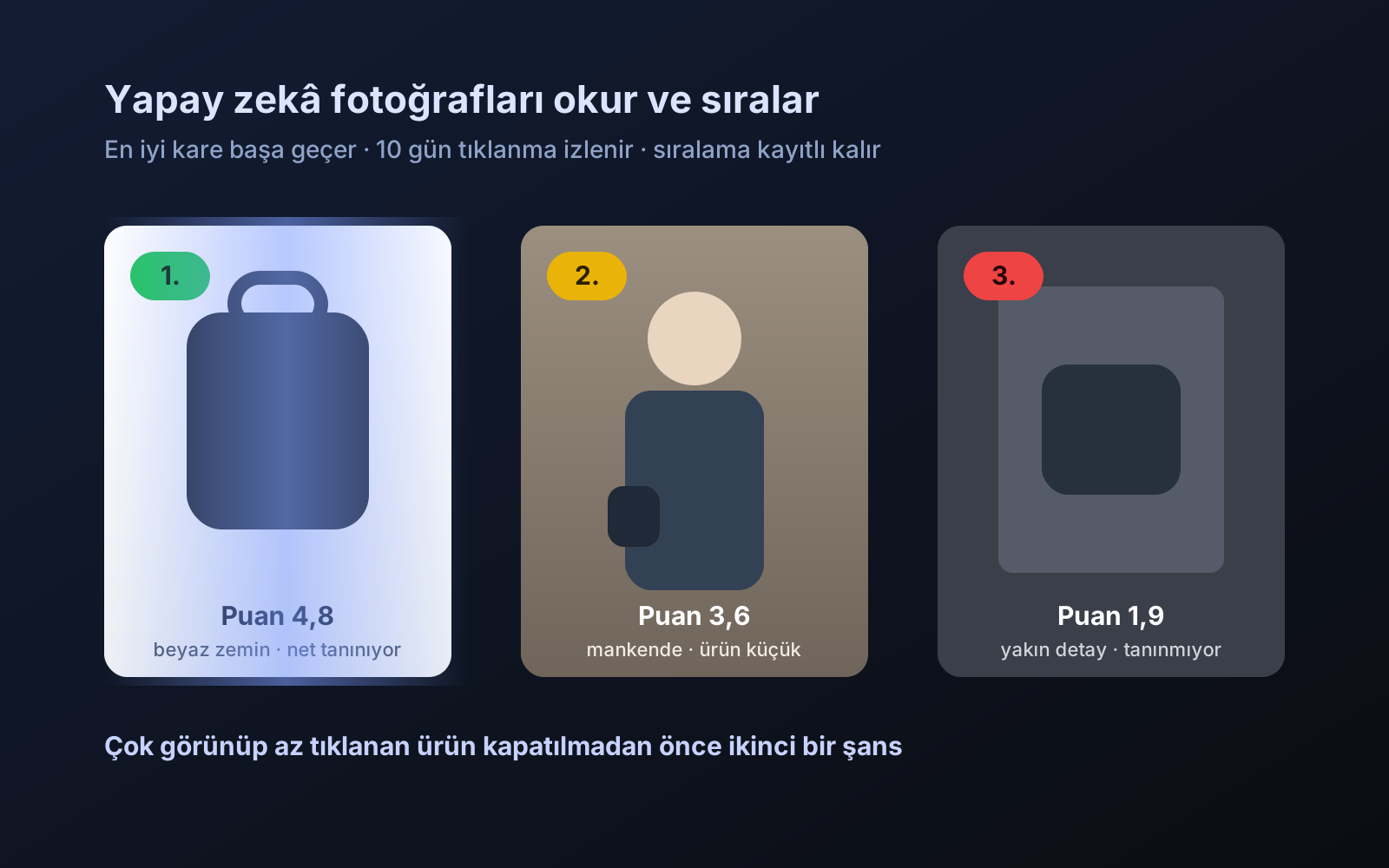
Photo trial before swap
We have improved our system for turning products on and off. It is still in a trial stage, but you can already use it.
2026-10-28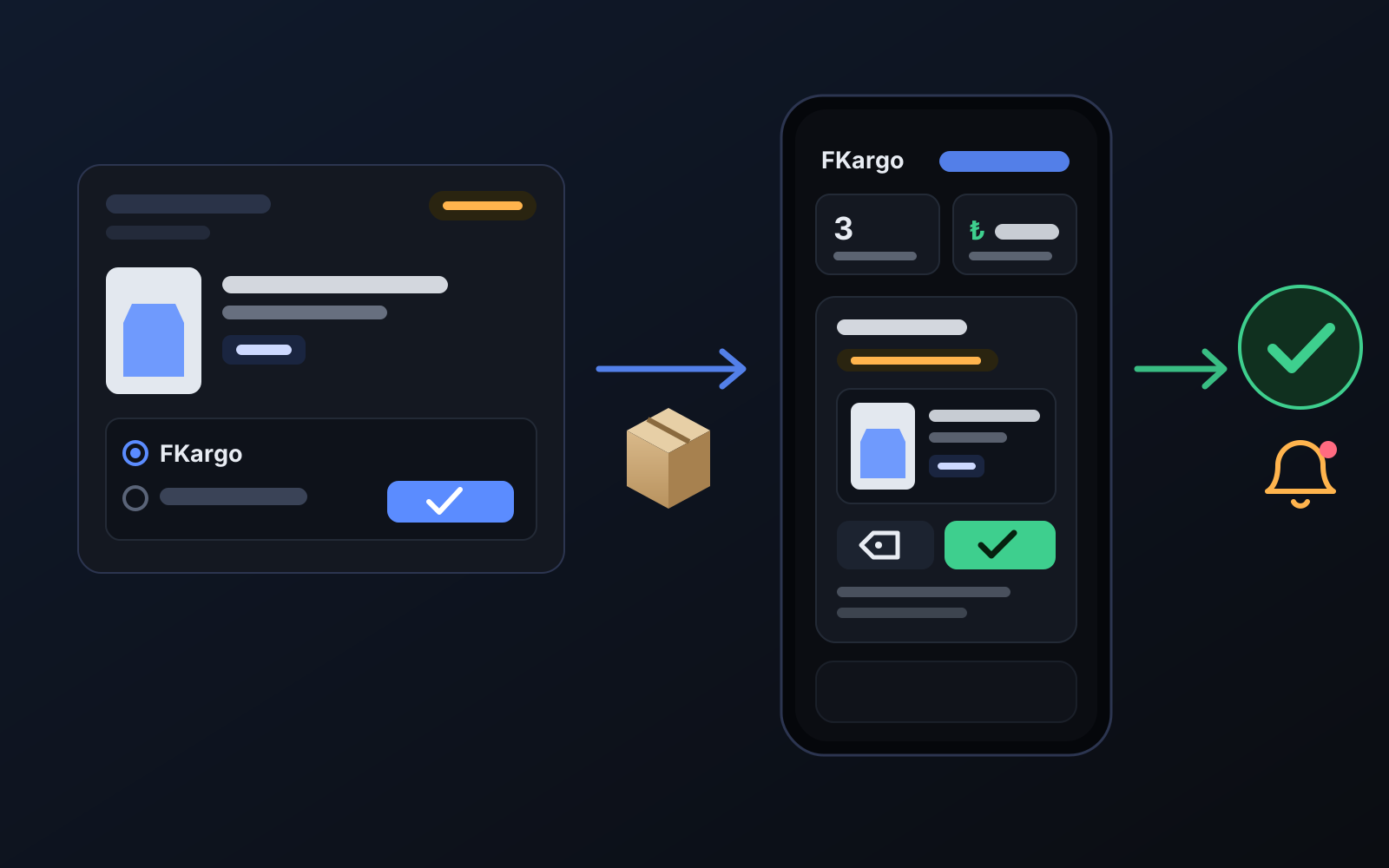
Shipping partners: hand your orders to FKargo and see when they are shipped
Order the item from the brand to FKargo’s address; FKargo puts on the Ozon label and drops the parcel at the shipping point. One-click forwarding and automatic forwarding in Incoming orders.
2026-10-20