Product selection, pricing, listing preparation and stock tracking. Commbot runs this work for you; you set your profit limits and follow the results in one panel. It never prices a product below your profit floor — the floor accounts for commission, shipping and a returns allowance — and it audits its own work every 15 minutes with 38 separate checks.
Half-hour demo call · setup together with our team · no code, plugins or extra software
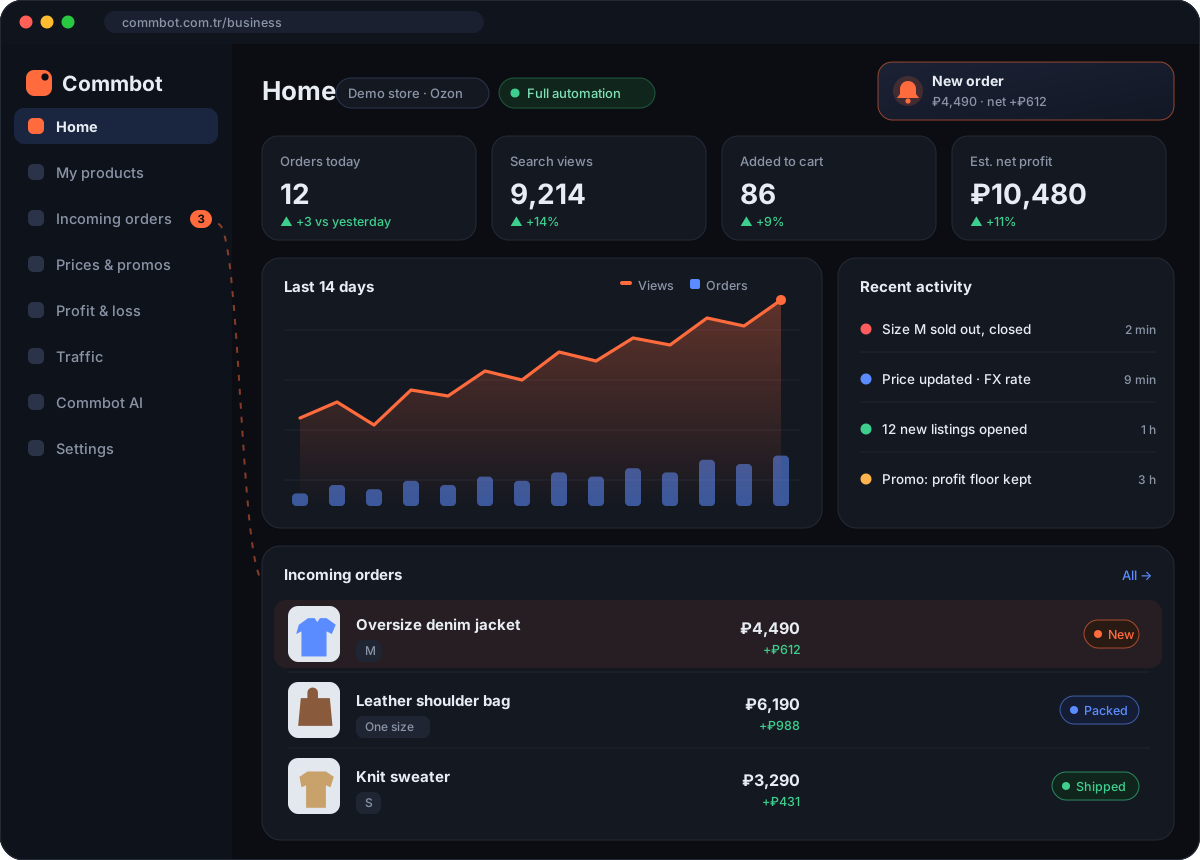
We compared new listings chosen by the hit finder with new listings opened before it, using the same yardstick: each listing's first 14 days on sale.
Measurement period 24 September – 18 October 2026, our own Ozon store. More views and add-to-carts do not by themselves mean more sales; there is not yet enough data to measure the effect on orders. Results vary from store to store with the product range, season and prices.
The panel has two parts: store management and opportunity discovery. Available in Turkish, English and Russian.
The Product pool, Trends & Opportunities, Ozon Market and Link found screens are available depending on your plan.
In full automation mode, six steps run in order every day. All of them are live today.
It scans the source catalog and compares each product with its price on the marketplace. A product whose price, built with your profit margin, exceeds the market's upper price band cannot become a candidate. The remaining candidates are ranked by the views the hit finder predicts.
Products with a margin below 20% are not listed. Nor are products without at least two sizes in stock at the source; a product with a single size left carries a cancellation risk. If the season filter is on, out-of-season products are filtered out as well.
AI writes the title, description and tags in the buyer's language; a second check stops features the product does not have from being written. The words buyers search for on the marketplace are worked into the product name, tags and description. A vertical video is produced from the photos; the size chart, filter details, brand, material and composition, barcode and rich content are added to the product card. If smart first photo is on, the main photo is taken from the frame in which the product is most recognizable.
Commission, weight-based shipping and the return allowance are factored in. The price goes at most 15% above the median price of competitors of the same brand and type, and it never goes below the profit floor. In ruble-priced stores, the price is rounded the way buyers are used to: 1543 → 1539.
It takes a listing off sale when the product sells out at the source and reopens it when stock returns. It archives a listing that has been out of stock for a long time and reopens it when stock comes back; sizes that come into stock later are added to the listing. A listing that is on sale, has orders or has stock is never deleted. When storefront guard is on, the daily upload limit increases by the number of listings closed during the day.
For a listing that doesn't sell, it looks for the cause: if it isn't seen, the tags are adjusted; if it is clicked but doesn't sell, the description; if it is added to carts but not ordered, the price. The effect is measured for seven days, and changes that don't work are rolled back.
Besides automatic selection, you can also add any product you want by its link or from your own stock.
Commbot runs products through its checks and uploads as many as the daily count you set. With the gender setting, you focus your store on mixed, women's or men's products. You see the upload queue and can move a product up, remove it from the queue or upload it right away without waiting.
You paste the product link and the product becomes a draft with your margin. Links from Bershka, Zara, Mango, Pull&Bear, Stradivarius, Oysho, Pierre Cardin and Victoria's Secret are supported. Bershka, Zara, Pull&Bear, Stradivarius and Oysho products not yet in our catalog are fetched from the source instantly.
If you have the product on hand, you paste its link, enter the sizes and quantities you will sell, and choose “Save as draft” or “Upload now”. If your daily upload quota is not enough, the product is uploaded automatically the next day and you are notified.
Paste a product page link: the AI reads the page and shows the name, price, colour, sizes, stock for each size and the photos on a card. The trial only shows the result; the product is not added to any store or uploaded anywhere.
The first product from a site can take 30–90 seconds; later products from the same site are read in a few seconds.
This is a beta: reading is not perfect on every site. We do not force our way past sites that block bots. There is a daily trial limit per person.
Trial reads are tied to your Google account. After signing in you come straight back to this section.
Sign in with GoogleSign-in could not be completed. Please try again.
Listing slots on a marketplace are limited, and every new listing takes the place of another product. The hit finder calculates in advance how many times a day each candidate will be viewed, so your listing quota goes to the products with the highest potential. What it predicts is search views, not sales — the first step on the way to a sale.
The views that products of the same type actually received in the store and on the market.
A product priced close to the market is viewed 4–12 times a day; a noticeably more expensive one, about 2 times.
An out-of-season product's score is halved; a product coming into season scores higher.
If the same model sold more than 100 units on the market in the last four weeks, the product's score goes up.
Products are ranked by this forecast; a product below the threshold can only be listed through the discovery share or as a product you have moved up yourself.
A share of each day's new listings is set aside for discovery products so the system can learn.
At most 30% of new listings are bottoms, which keeps the range balanced.
Each new listing is measured between its 3rd and 7th day on sale and marked as a hit, on watch, kept or frozen. See the measured results ↑
Every price is set by the calculation below and recalculated every 10 minutes. Because the source price of live products is also checked every 10 minutes, a change reaches the price in the same round; competitor prices are collected every night.
Automatic prices never go below the profit floor. A price below the floor is applied only through a setting you turn on (e.g. break-even pricing for returned items in the marketplace warehouse) or a change you approve one by one.
| Item | Where it comes from | Impact |
|---|---|---|
| Source costThe current discounted price on the source site | live products 10 min · catalog daily | 1.299,90 ₺ |
| Currency conversionInto the currency the buyer sees | hourly exchange rate | → ₽ |
| Marketplace commissionCategory commission, from store settings | setting | − %7 |
| ShippingLow-cost class if under roughly 500 g and $80, otherwise standard | weight + price | − ~154 ₽ / ~466 ₽ |
| Shipping class adjustmentOn a dollar-priced listing, if the price sits just above the $80 threshold and the product's dimensions allow it, the price is brought down to $80; the shipping saving covers the price difference, and the price never goes below the profit floor | price + dimensions | low-cost class |
| Return allowanceHow the category's return rate feeds into the cost | setting | − share |
| Lower limit — minimum marginIt never goes below it; if it would, the product isn't listed at all | setting | 20% floor |
| Upper limit — competitor medianThe price goes at most 15% above the median price of competitors of the same brand and type, and it never goes below the profit floor. | competitor scan | cap |
| Price indexThe marketplace's price indicator is moved toward green; the price goes below the profit floor only with your approval | competitor price | green index |
| Psychological roundingOnly in ruble-priced stores | — | 1543 → 1539 |
| Selling price | recalculated every 10 minutes | 4 490 ₽ |
Products with a yellow or red price index are grouped on the home page: those that still make a profit at the green price, those that make a profit only at the neutral price, and those that cannot be won while keeping a profit. You decide which ones to lower with the reasoning in front of you, and approve a drop to the green price in one click. In stock mode, the index is only monitored.
When you enter the cost in the price calculator, you instantly see the selling price, the net profit and the floor price. The profit / loss report works out your net profit by product and by brand from the marketplace's actual deductions.
A single switch stops all automation. The switches below it decide which tasks Commbot may do on its own. Tasks you turn off are still detected but not applied: you see them in the panel, and nothing reaches your store.
All of the automation in your store. When turned off, no listings are deleted; only the automatic actions stop and listings stay as they are.
Takes products that sell out at the source off sale and reopens them when stock returns. Turning it off is not recommended: if a sold-out product stays on sale, orders get cancelled.
Updates the price when cost, exchange rate or competitor price changes. When off, prices stay fixed; if costs rise, you risk selling at a loss.
Produces a vertical video from product photos for new listings. It is safe to turn off; the listing is simply less rich.
Applies a time-limited discount to products added to carts but not bought. When off, no new discounts are started; existing ones end when they expire or when an order comes in.
Shows a discount badge on the listing. You set the rate; it doesn't touch your selling price or profit, it only writes the reference price.
When off, Commbot does not upload products on its own; it only offers a list of opportunities. When on, it uploads as many products as your daily limit allows from the candidates that pass the checks.
When on, no new listings are created for out-of-season products: summer items from September to February, winter items from April to August. Listings already on sale are not affected.
When on, a new listing's main photo is taken from the frame in which the product is most recognizable as a thumbnail. When off, the brand's own photo order is used.
When on, it joins marketplace promotions at the best price that stays above your profit floor. A product whose promo price falls below the floor is removed from the promotion; if promo costs start eating too much of the profit, new participation stops.
Manages the price of returned goods in the marketplace warehouse according to the mode you choose: neutral, promotional or normal. When off, no prices are written to warehouse listings.
Adds an extra margin to products whose cost is below the threshold you set; on low-priced products a percentage margin alone leaves too little profit. The profit floor does not change.
A wrongly written price often goes unnoticed until the end of the month. Commbot has a second layer that prevents this: 38 separate checks run in the background every 15 minutes; any issue they detect is routed to our team and fixed.
Every listing has a floor price: the lowest price that still leaves a profit after source cost, commission, shipping, returns allowance and sourcing expenses. No promotion, automatic discount or price adjustment can go below it. If a competitor is cheaper, the product is not sold at that price; not selling is preferred to selling at a loss.
Different sizes of the same product can be priced differently on the market. Commbot does not flatten all sizes to one price; each size moves toward its target from its own price, so one cheap size does not drag the whole product down.
A single reading is not enough. If many listings would need to close at once, the data is read again; if the reading was wrong, no listing is closed. Products showing zero stock on the marketplace but available at the source are also detected and put back on sale.
A single matching error could close hundreds of listings at once. Commbot does not close listings it cannot verify in bulk: it applies up to the daily cap, carries the rest over to the next day and shows them in the panel. If you prefer, you can make every closure require your approval.
When a product that has sold before runs out of stock, Commbot asks you on the home page before archiving it: remove it or keep it? If stock returns at the source, the question disappears on its own. This protection is on by default; you can turn it off if you wish.
Commbot does not delete a listing that is on sale, has orders or has stock, does not cancel orders and does not buy on your behalf. Only empty product cards are cleaned up: those the marketplace could not create, or those that have never made a sale and have been out of stock for 10 days or whose source can no longer be reached. Taking a listing off sale, archiving and price updates can be undone and are logged with a timestamp.
If the monitoring system has not taken a measurement for more than an hour, it flags this as its own failure on our team's panel. That way, a check that has gone silent is not mistaken for “all is well”.
Each store runs on its own rules: its own profit margin, currency, daily upload limit and user permissions.
Stock mode is protected. In a store in stock mode, Commbot does not change the prices of existing listings, does not close a listing without your approval and does not delete products. These restrictions are built into the software itself; they cannot be bypassed by accidentally turning on a setting. Everything detected is shown in the panel, and applying it requires your approval.
If you wish, daily product upload can be turned on in stock mode as well, and you add products from your own stock by their link.
A standard user manages their own commercial settings: profit margin, daily upload count, priority and excluded product lists. They cannot access the automation switches, closure rules or store mode; when needed, they request permission from the admin through the panel.
A product uploaded to one store is not uploaded again to another, so your stores never compete with each other.
None of Commbot's core functions are specific to one marketplace: catalogue, stock, pricing and listing preparation work the same everywhere. A marketplace is a connection added on top of this infrastructure.
The marketplace connected today is Ozon: the integration is live, listings are published and orders arrive regularly. When a new marketplace is added, the whole infrastructure stays the same; your catalogue, pricing rules and everything Commbot has learned so far carry over to the new market.
Entering a new market does not require setting up from scratch; a new connection is simply added to the existing infrastructure.
ikas is an e-commerce platform. When you connect your ikas store, your products and stock are transferred to Commbot and the details for your Ozon listings are prepared.
When you turn on stock sync, stock is kept in sync both ways for matched products: an item sold on Ozon is deducted from your ikas stock, and an item sold on ikas is deducted from your Ozon stock.
No code, software installation or browser extension needed; you get your store up and running together with our team.
You fill in the form; our team gets back to you, and on the demo call we review your store together.
Our team sets up your account. You can connect several stores to one account, and each store keeps its own settings.
In the seller panel, create a key and copy two values: Client-Id and Api-Key. The Api-Key is shown only at the moment it is created; if lost, a new one can be generated.
Ozon Seller → Settings → Seller API → Create keyPaste the key and press “Verify & Add”. The key is tested live on the spot; if it is invalid it is not saved and the reason is shown on screen. If it is valid, your store joins the approval queue. The currency is read from the marketplace, and your pricing rule is automatically aligned with it.
Until it is approved, no automatic action is taken on your store. We choose the operating mode together: full automation or stock monitoring only.
You set the daily upload count, your profit margin, and your priority and unwanted products. You can remove your store at any time; your marketplace listings are not affected.
If you use ikas, you connect your store from the ikas connection card on the API integration page; with the “Connect with ikas” button, there are no keys to copy.
On day one, automation stays off. On the demo call we review your store with you: we look at which products are not making a profit, which listings are priced incorrectly and how many products are sitting on sale with no stock. You decide whether to turn on automation after you have seen the numbers.
It takes about half an hour, with screen sharing, using your own store's data.
We will get back to you as soon as possible through the channel you provided.
On the left, the problems sellers mention most often; on the right, how Commbot solves them.
“I don't know which product will actually sell.”
→Interest is predicted in advance. Before listing a product, Commbot predicts how many times a day it will be viewed and selects only products that will make a profit and are likely to find buyers.
“The product sold out at the source and the order got cancelled.”
→Stock is checked every ten minutes. When a product sells out at the source, its listing is taken off sale and reopened when stock returns.
“I priced it wrong and lost money on a sale I thought was profitable.”
→No loss-making price is ever set. The selling price is set so that it still leaves a profit after commission, shipping and the return allowance are deducted. The price goes at most 15% above the median price of competitors of the same brand and type, and it never goes below the profit floor.
“The exchange rate moved and my prices are stuck in the past.”
→Prices are recalculated every 10 minutes. Source prices and stock of your live products are also checked every 10 minutes, and changes reach your price in the same round. Exchange rates update hourly; competitor prices are collected every night.
“Writing listings, translating them and preparing images eats my whole day.”
→Listings are prepared automatically. The title, description and tags are written in the buyer's language, and a vertical promo video is produced from the product photos.
“I notice orders too late.”
→Orders are reported instantly. The notification shows which size to buy, the product's source link and the net profit from the sale. You download the shipping label as a PDF from the panel in one click; the sourcing guide shows the size to buy, the cost and the purchase link.
“They put the product in the cart but don't buy it.”
→Items left in carts get a time-limited discount. The marketplace itself notifies interested buyers of the price drop; the discount is removed once an order comes in.
“My listing looks flat while competitors have a discount badge.”
→Listings show a discount badge. Every listing gets a strikethrough reference price; your selling price and profit stay the same.
“My listing gets shown, but nobody clicks.”
→When smart first photo is on, the main photo is chosen by AI. The frame in which the product is most recognizable as a thumbnail goes first, and the details buyers filter by (sleeve length, collar, fastening, fit, colour) are filled in completely.
“The season has changed, but summer items are still being listed.”
→With the season filter on, out-of-season products are not listed. Summer items are not listed from September to February, nor winter items from April to August; your daily listing quota goes to products that will sell.
The goal is for Commbot to learn from its own results: a system that knows what sells also knows better what to list. Below, features that are live today are shown separately from those that are planned.
Core automation: opportunity scanning, profit and stock checks, listing text and video, ten-minute price and stock tracking, order notifications and controlled automatic listing.
Content experiments: diagnosis, change, a seven-day measurement and rollback of changes that don't work.
Search demand data: how many buyers search for each keyword and the add-to-cart rate for those searches feed into product selection.
Learning from sales: orders, add-to-carts and views from the last 90 days feed into the candidate score; product groups that don't sell fall back and those that do move forward.
Loss protection and continuous checks: 38 checks run in the background every 15 minutes; any issue they detect is routed to our team and fixed.
Hit finder: the daily views of every candidate are predicted before it is listed; other colours of bestsellers and proven models discounted at the source go first.
Season-based product selection and smart first photo: two optional settings; when turned on, out-of-season products are not listed and the main photo is taken from the frame in which the product is most recognizable.
Commbot AI: manage your store by asking questions: reports, product search and approved actions.
ikas integration: product and stock transfer, Ozon card preparation and two-way stock sync.
New marketplace integrations and successful content templates: a title structure that works on one listing becomes the default for similar listings.
For every new feature we explain what it does, how to use it and what it affects.

See how your products do by category, brand, price, colour, size and region, in charts. The page turns findings into plain sentences and gives one-click suggestions.

We have improved our system for turning products on and off. It is still in a trial stage, but you can already use it.
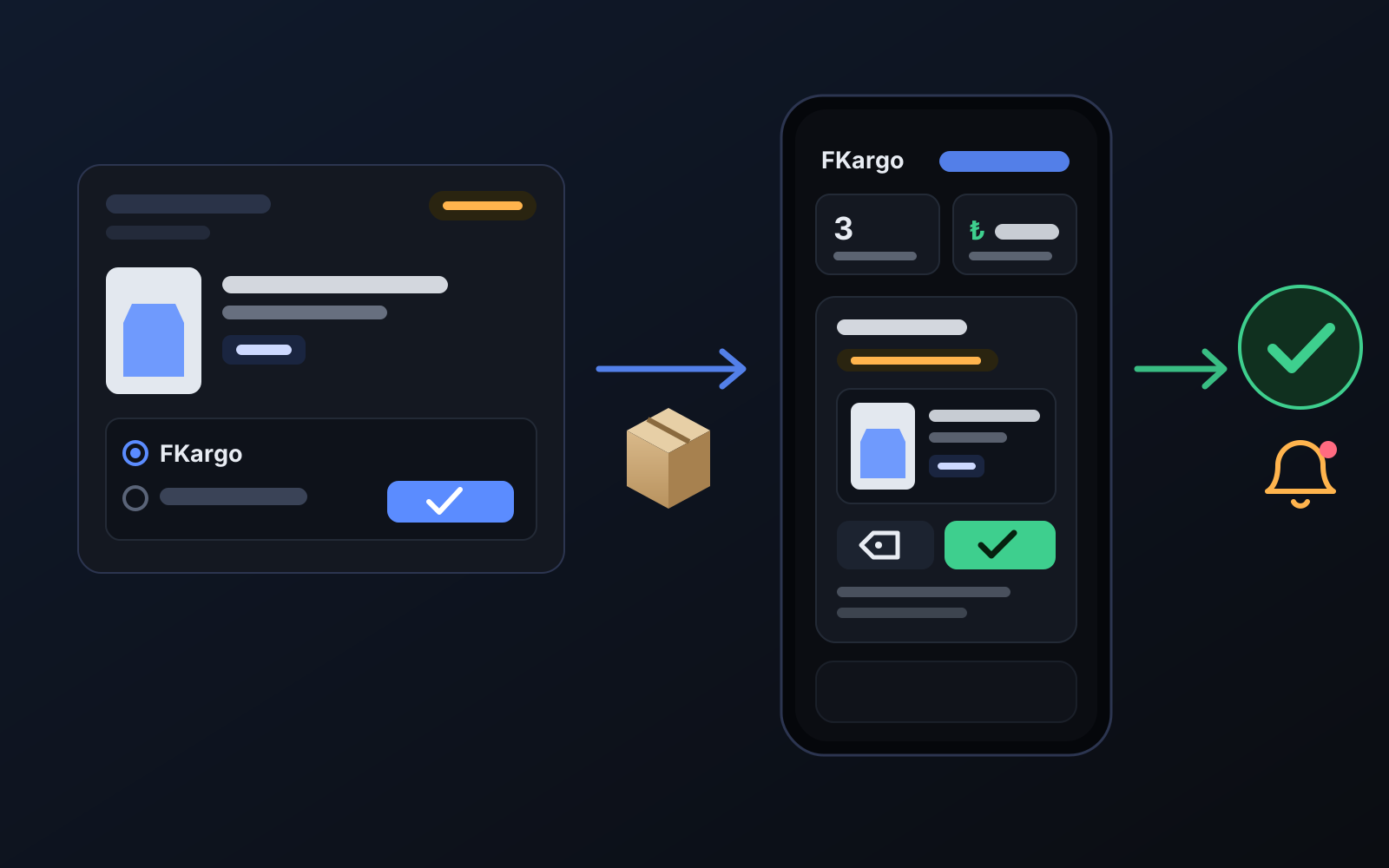
Order the item from the brand to FKargo’s address; FKargo puts on the Ozon label and drops the parcel at the shipping point. One-click forwarding and automatic forwarding in Incoming orders.
We watched what sellers on the Russian market actually say and wrote down as much as we could verify. Every post lists the videos it rests on.
From account setup to customs, commission and the payout floor — what Turkish sellers and the Ozon Global Türkiye team say, contradictions included.
From seller videos and Ozon's own webinars: why the first reviews decide a card, how points-for-reviews works, and how sellers answer negatives.
Legal form, tax regime, the VAT threshold and the marketplace report, as sellers describe them. Not tax advice; rates and thresholds change.
After your demo request, your account is set up and you connect your store. No automatic action is taken until your store is approved; you decide whether to turn on automation after you have seen the numbers.
 Commbot