 Commbot
Product card: photos, price, profit and stock by size, one click away anywhere in the panel
You no longer need to switch pages to gather information about a product. The product card opens the same way in every list in the panel that shows products, with the product's status at the source and on Ozon side by side.
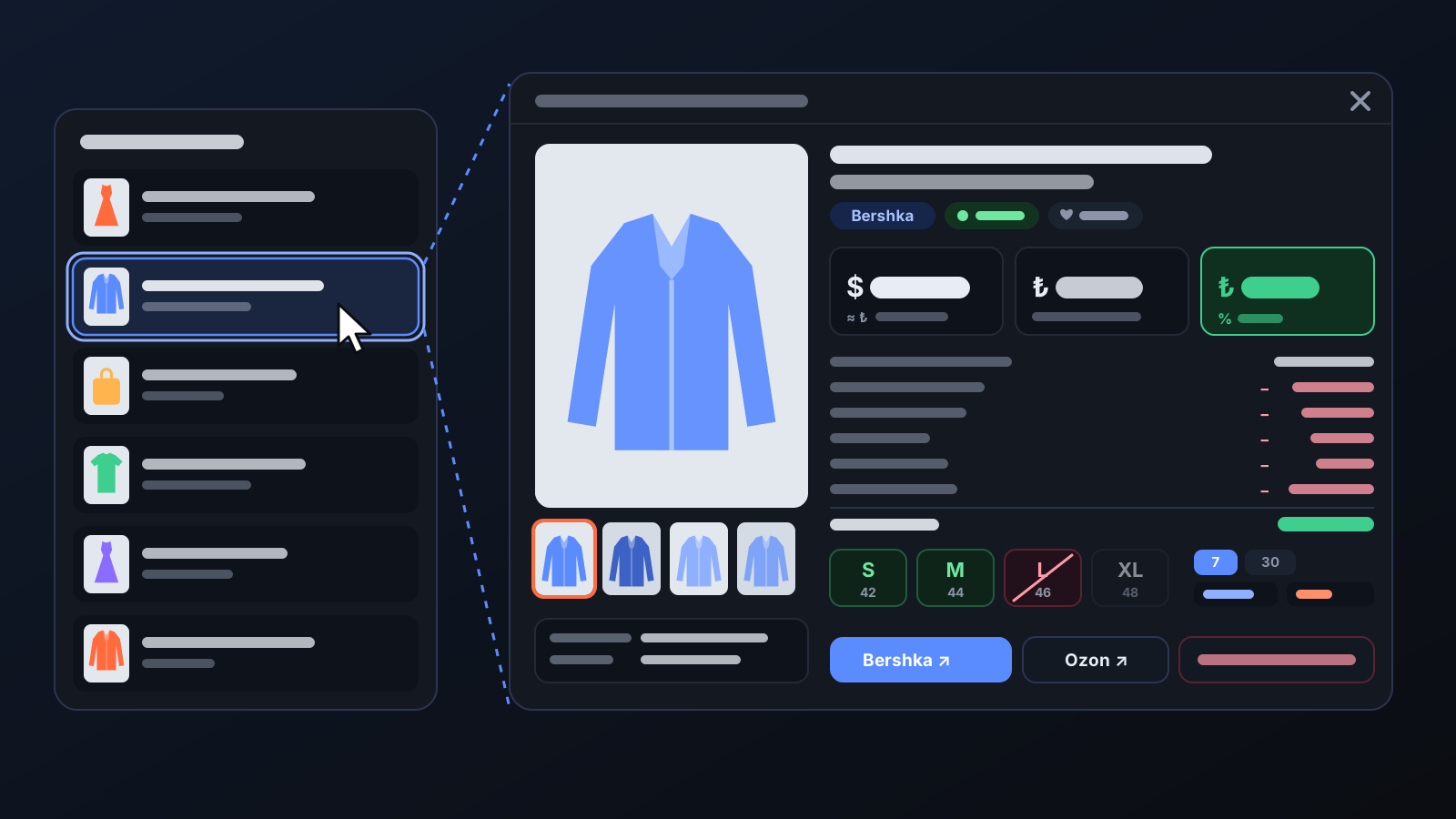
Finding out an order's profit, whether a size has sold out at the source, or how many times a product was viewed last week used to mean checking several pages. The product card brings all of this into one window. It opens the same way in every list in the panel that shows products, so wherever you are, you read the product in the same place.
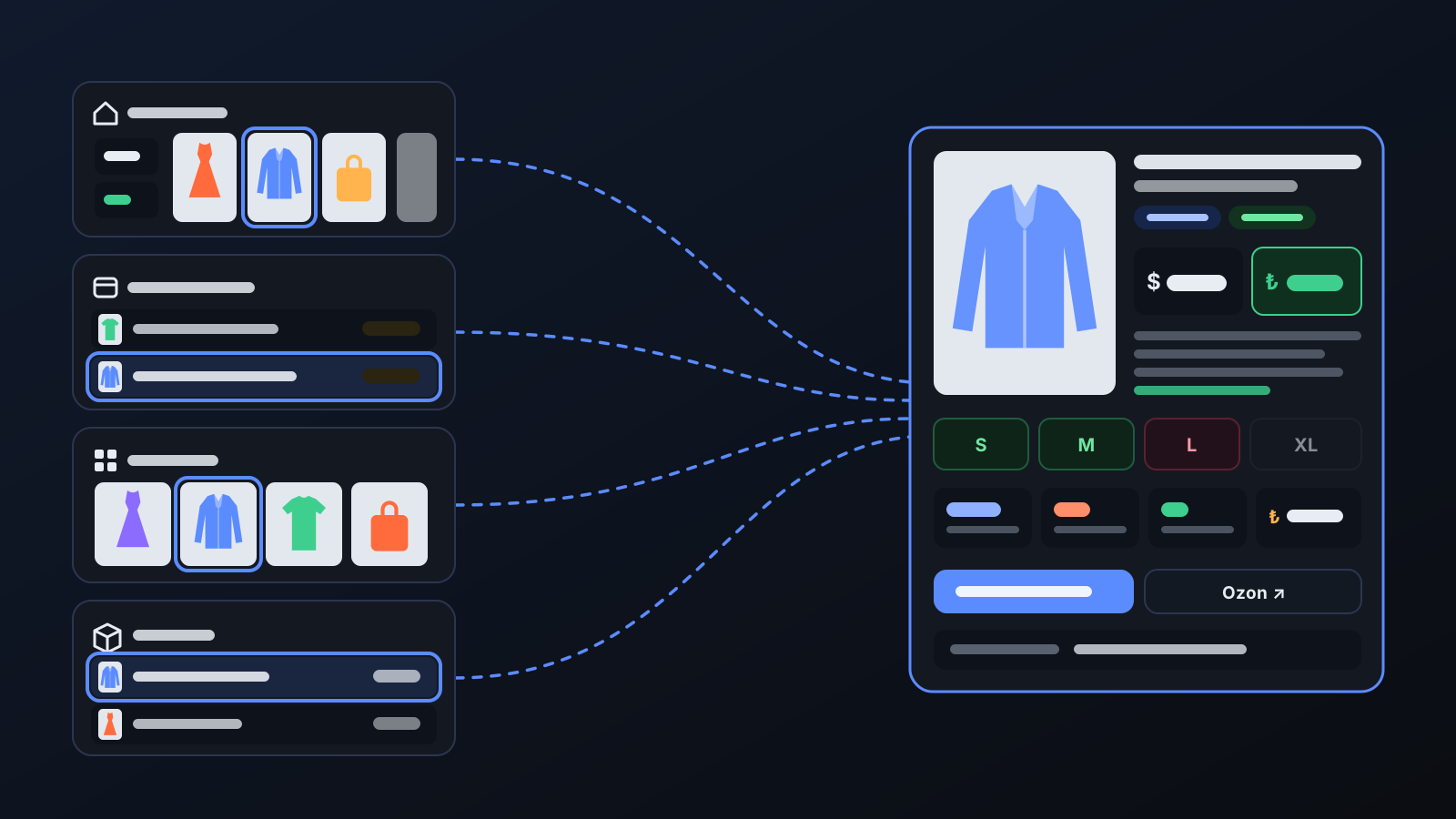
How it works
- Click a product's row or photo in the cart, order and top-product lists on Home, or on pages such as Products, Incoming orders, Warehouse, Profit / Loss and Price & Stock.
- The product's photos are on the left; click a thumbnail to enlarge it. Color swatch tiles and very small images are left out of the gallery.
- On the right are the Selling price (in your Ozon currency, with its TL equivalent), the Purchase price (the source's current price) and Net profit / unit. The profit breakdown below lists the Ozon commission, return allowance, shipping, sourcing and extra costs one by one.
- In Sizes, each size is shown with its Russian size: green means in stock at the source, red means sold out at the source, faded means closed on Ozon.
- Performance shows views, cart adds, orders and revenue for 7 and 30 days; at the bottom are buttons to the brand's website and the product's Ozon page.
What it affects
- One profit calculation: the card's profit uses your store's price settings and the same calculation used when new products are added, so the same product shows the same profit on every screen.
- Price floor: the floor price is shown under the selling price; if the price sits on the floor, you see "price at floor". The floor comes from the minimum margin in your price settings, and automatic repricing never takes the price below it.
- Status and origin: badges at the top show the product's status (On sale, Draft, In archive…) and how it entered the store (from Discover, by link, added by the engine…).
- Price index: if Ozon gives the product a price index, you see its color, the competitor price and the green price; otherwise it says "No index".
- Removing from the store: Remove from store at the bottom of the card first asks for a reason; the product is archived on Ozon and the bot won't add it back on its own. Reviews and history are kept.
- Sold out at the source: the Search on Dolap and Search on Gardrops buttons look the product up on these sites by brand and name.
For better results
- Open the card before sourcing an order: the size's color tells you whether it's in stock at the source.
- If net profit is red, look at the profit breakdown; it shows which cost pushes it below zero.
- Use copy next to Offer code and Reference to search for the code in your Ozon seller account or on the brand's site.
- For a product not yet uploaded to Ozon, the card shows a photo upload section: choose your own photo as the main or an extra image, and it goes into the listing when the product is uploaded.
More from Commbot
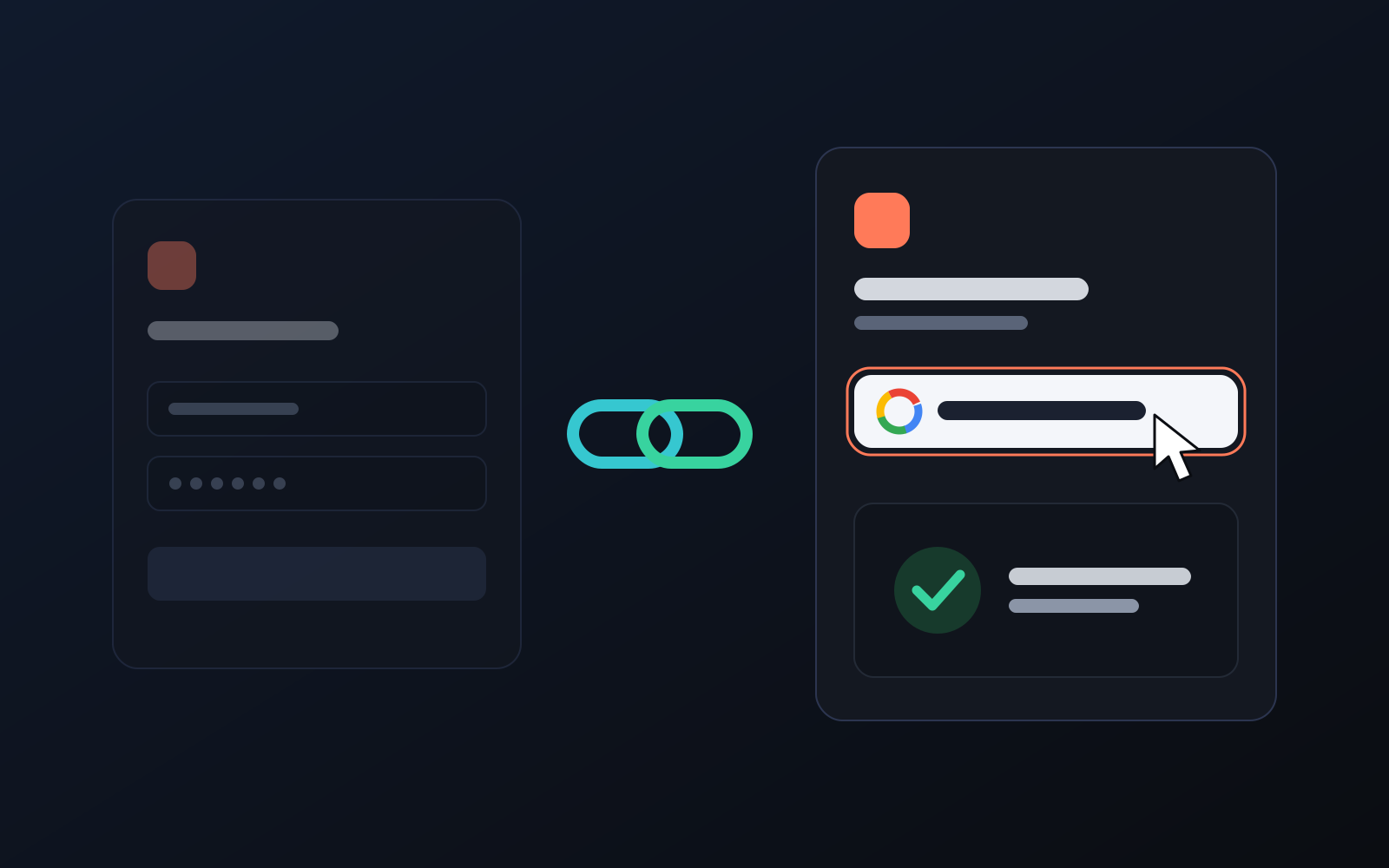
One-click sign-in: link your account to Google
You can now link your Google account to the account opened with the username and password we gave you. Link it once, then sign in with the "Sign in with Google" button without typing a password.
2026-10-29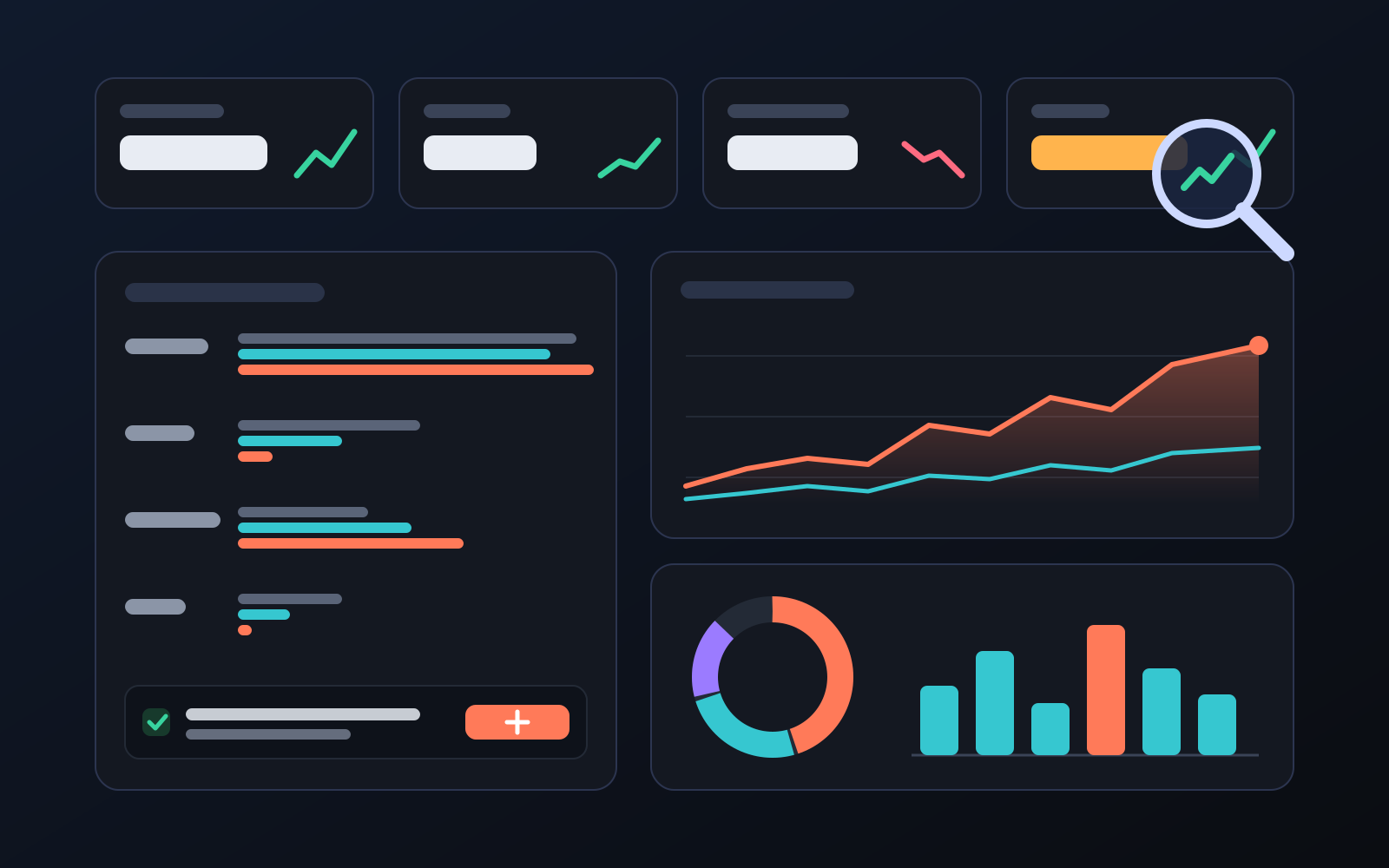
Analytics page: what sells in your store and what doesn't, on one screen
See how your products do by category, brand, price, colour, size and region, in charts. The page turns findings into plain sentences and gives one-click suggestions.
2026-10-29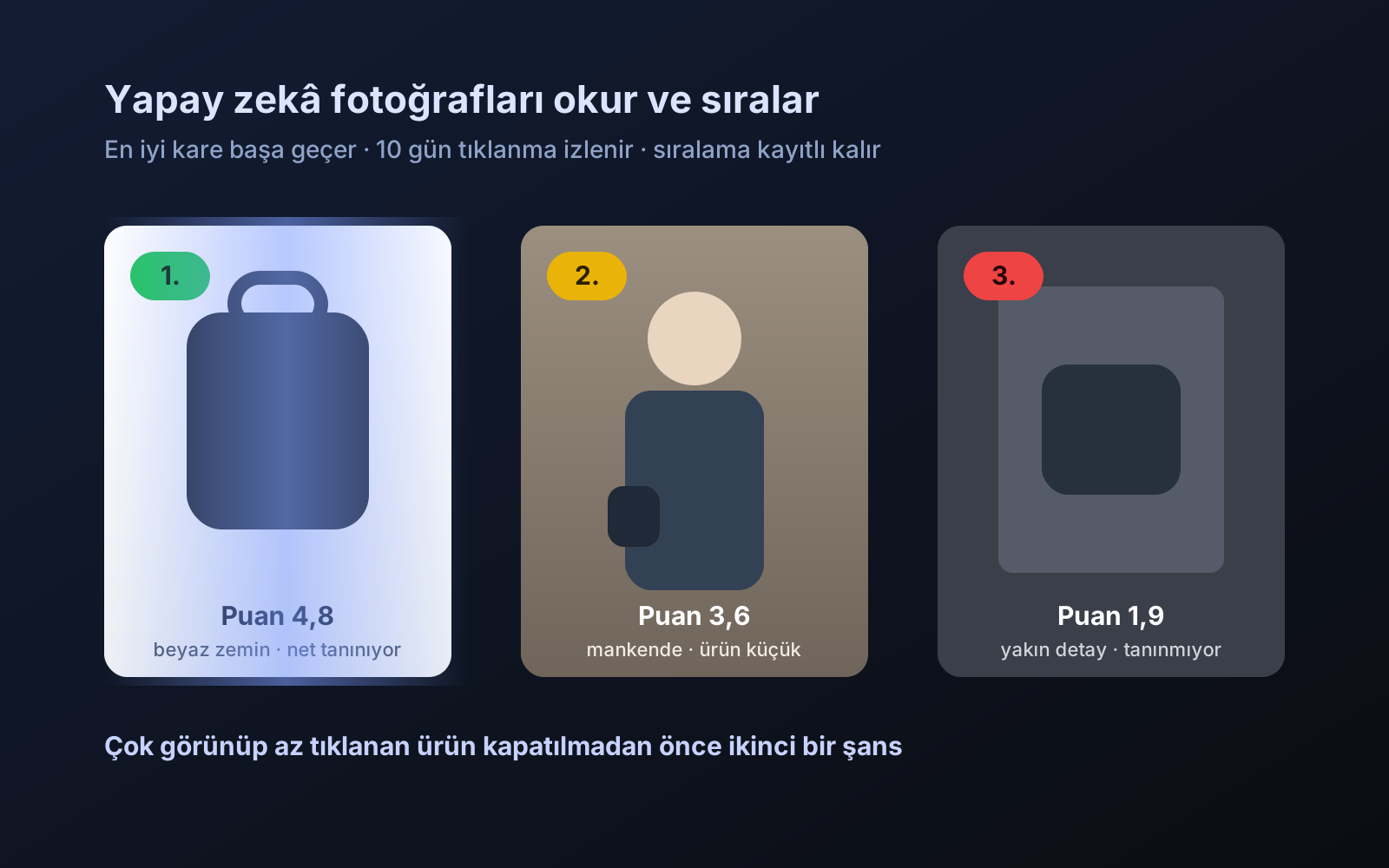
Photo trial before swap
We have improved our system for turning products on and off. It is still in a trial stage, but you can already use it.
2026-10-28