 Commbot
Incoming orders: instant notifications, product photos and the Ozon package label in one click
Your Ozon orders sit on the Incoming orders page with their stage, ship-by date and product photos. With Ozon's instant notification channel connected, a new order lands in the bell without waiting, and you download and print the label of a packed order straight from the panel.
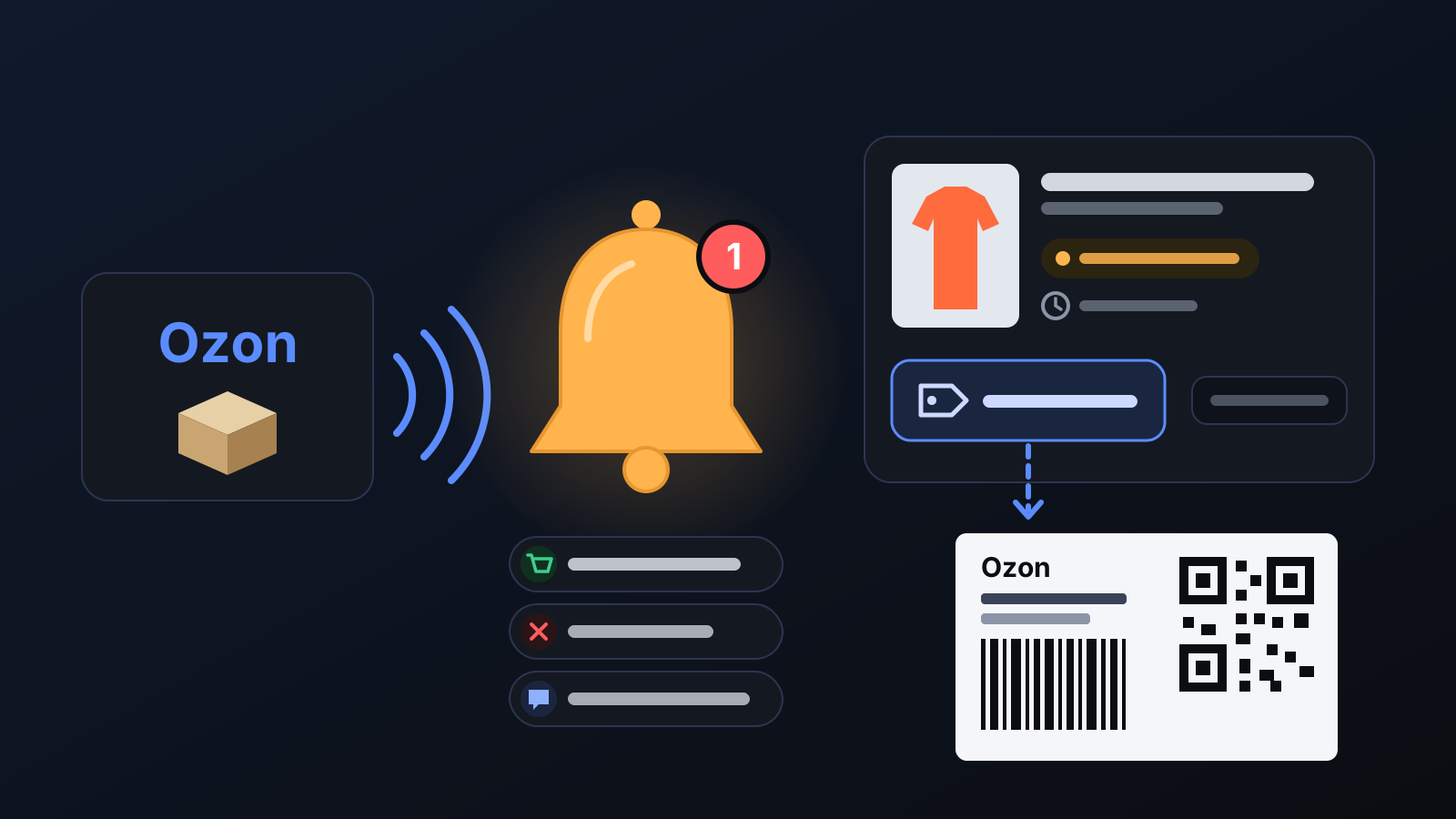
Every Ozon order has a ship-by date; noticing an order late means buying the item from the brand late. The Incoming orders page brings every step together on one screen — from noticing the order to sticking the label on the parcel.
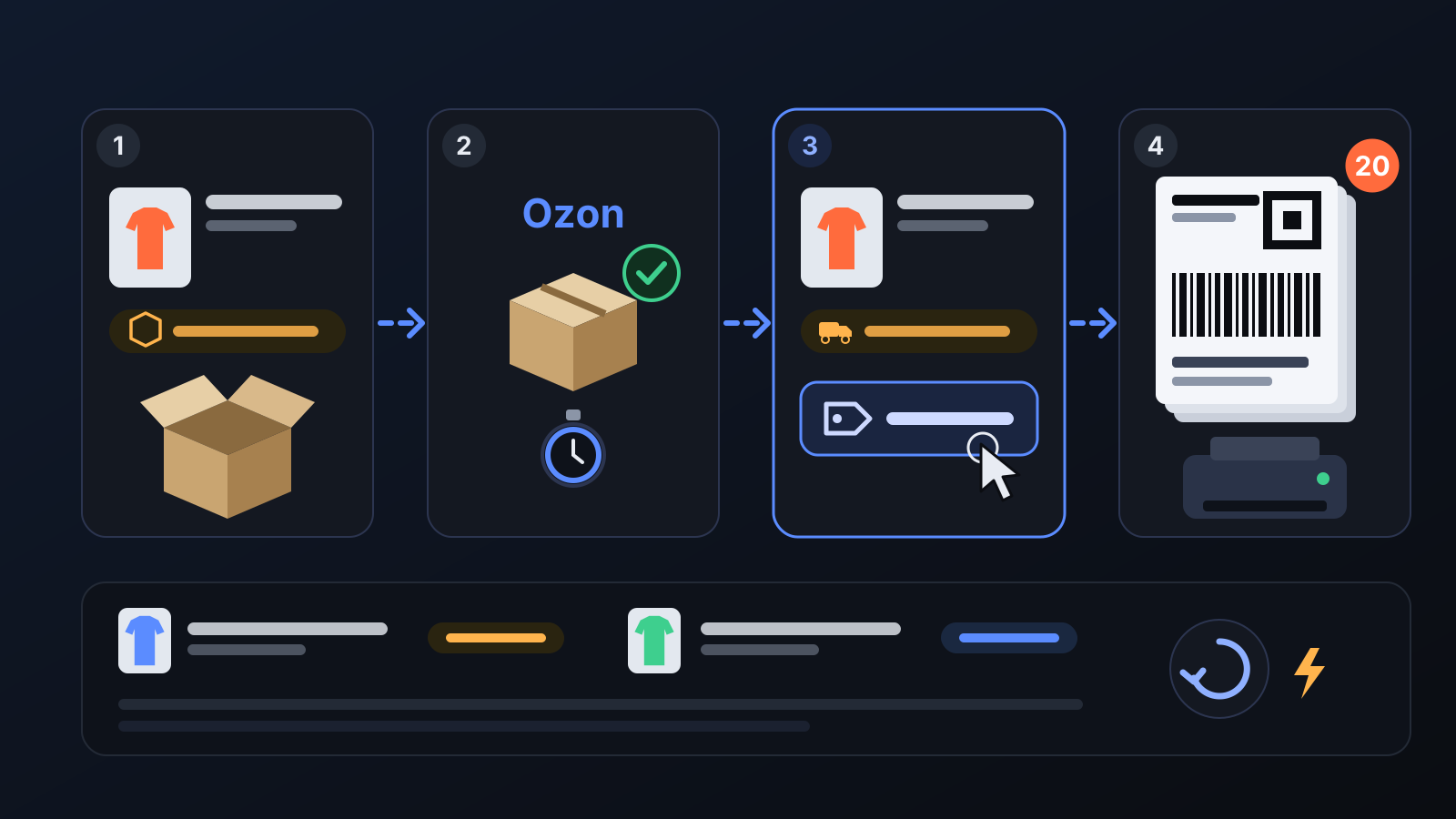
How does it work?
- Instant notifications: with Ozon's instant notification channel connected to your store, Ozon reports new orders, cancellations (with the reason) and buyer messages to Commbot straight away, and the notification lands in the panel's bell. In stores running on full automation, the new-order notification also shows the size to buy from the brand and the purchase link.
- Order rows with photos: each row shows the product photo and name, the order stage (Packing, To be shipped, In transit, Delivered…), the ship-by date, the carrier and the tracking number. Click the product to open its product card.
- One-click label: once you pack an order shipped from Turkey in Ozon, a 🏷 Label (PDF) button appears on the row and Ozon's package label opens as a PDF. The All labels button puts the labels of all orders to be shipped into one PDF (up to 20).
- Fast loading: the order list is stored in Commbot and refreshed from Ozon in the background about every 5 minutes, so the page does not wait for Ozon each time it opens. If Ozon is temporarily unreachable, the last list is shown with how many minutes ago it was fetched. ↻ Refresh pulls the list right away.
What does it affect?
- Bell: new orders, cancellations and buyer messages in one place, with an unread counter.
- Home: today's orders also appear on the home page with their photos.
- Summary cards: at the top of the page, the number of orders in the last 30 days, total revenue, delivered and cancelled/returned orders.
- The order on Ozon: getting the label does not change the order's stage; packing and handing the parcel over happen in Ozon.
For better results
- The label is ready 45–60 seconds after the order is packed in Ozon; if you see a "not ready yet" message, wait a little and try again.
- Prepare the order before its ship-by date: the date is shown on every row as "ship by".
- You do not need to print a label for orders shipped from an Ozon warehouse (FBO); the label button only appears on orders you ship from Turkey.
More from Commbot
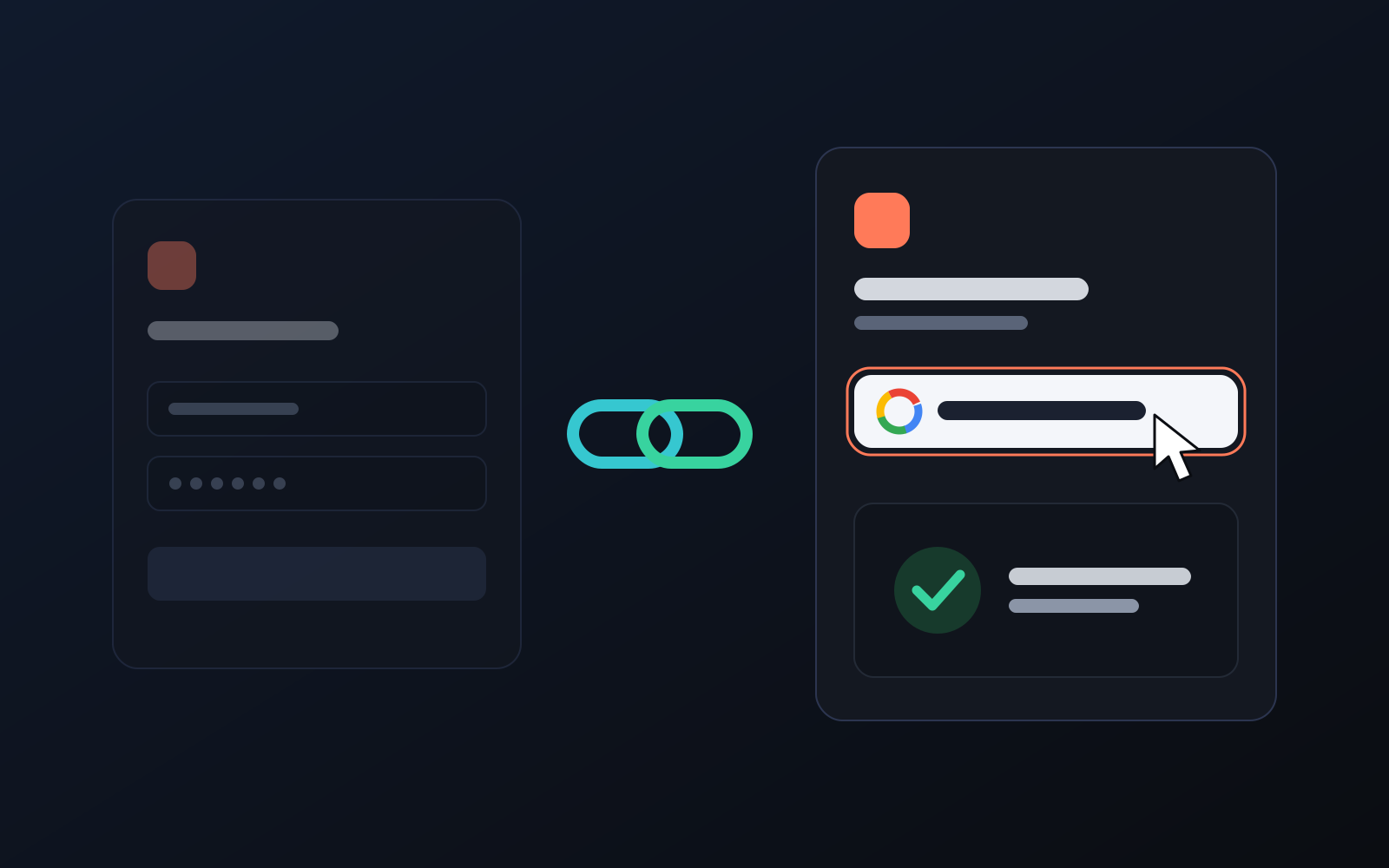
One-click sign-in: link your account to Google
You can now link your Google account to the account opened with the username and password we gave you. Link it once, then sign in with the "Sign in with Google" button without typing a password.
2026-10-29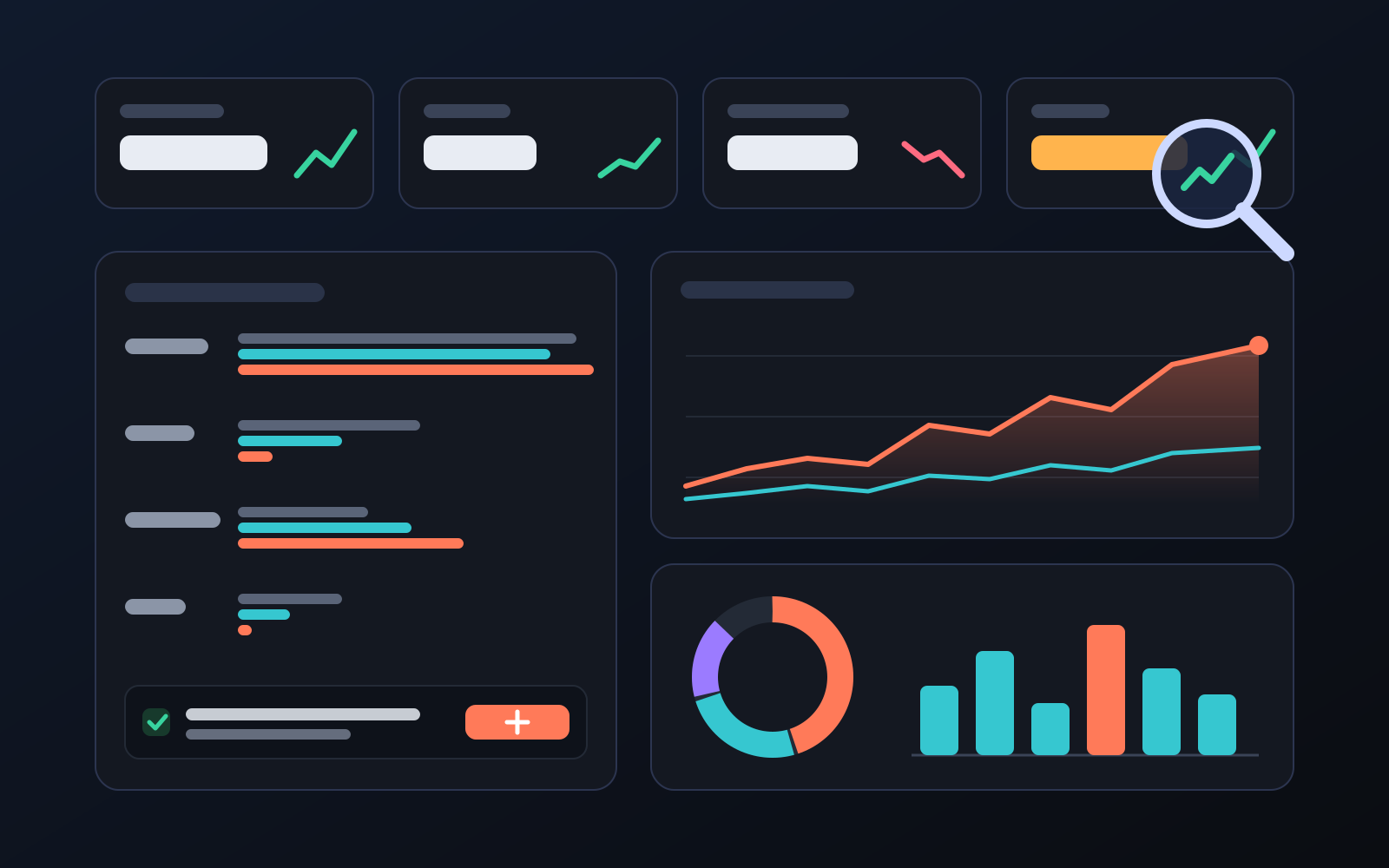
Analytics page: what sells in your store and what doesn't, on one screen
See how your products do by category, brand, price, colour, size and region, in charts. The page turns findings into plain sentences and gives one-click suggestions.
2026-10-29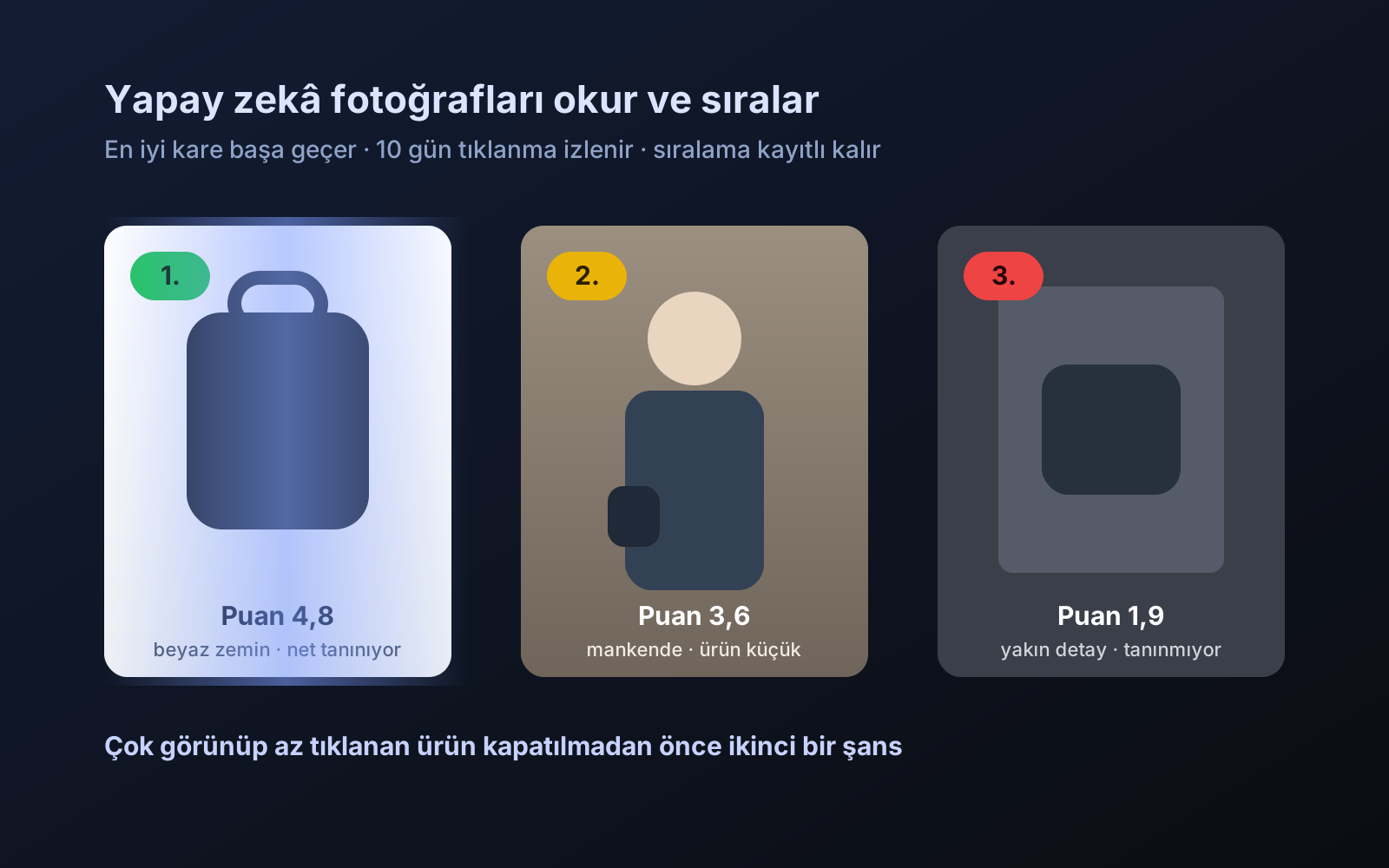
Photo trial before swap
We have improved our system for turning products on and off. It is still in a trial stage, but you can already use it.
2026-10-28